AUDIO EFFECT / PROCESSING · FREE FOREVER · APPLE SILICON
Blinderman
Creative sound processing and texture.
A multiband dynamics interface with dedicated processing slots and an overview of band behavior.
macOS · Apple Silicon (ARM64) · AUv2 + VST3 · One Shot lifetime license
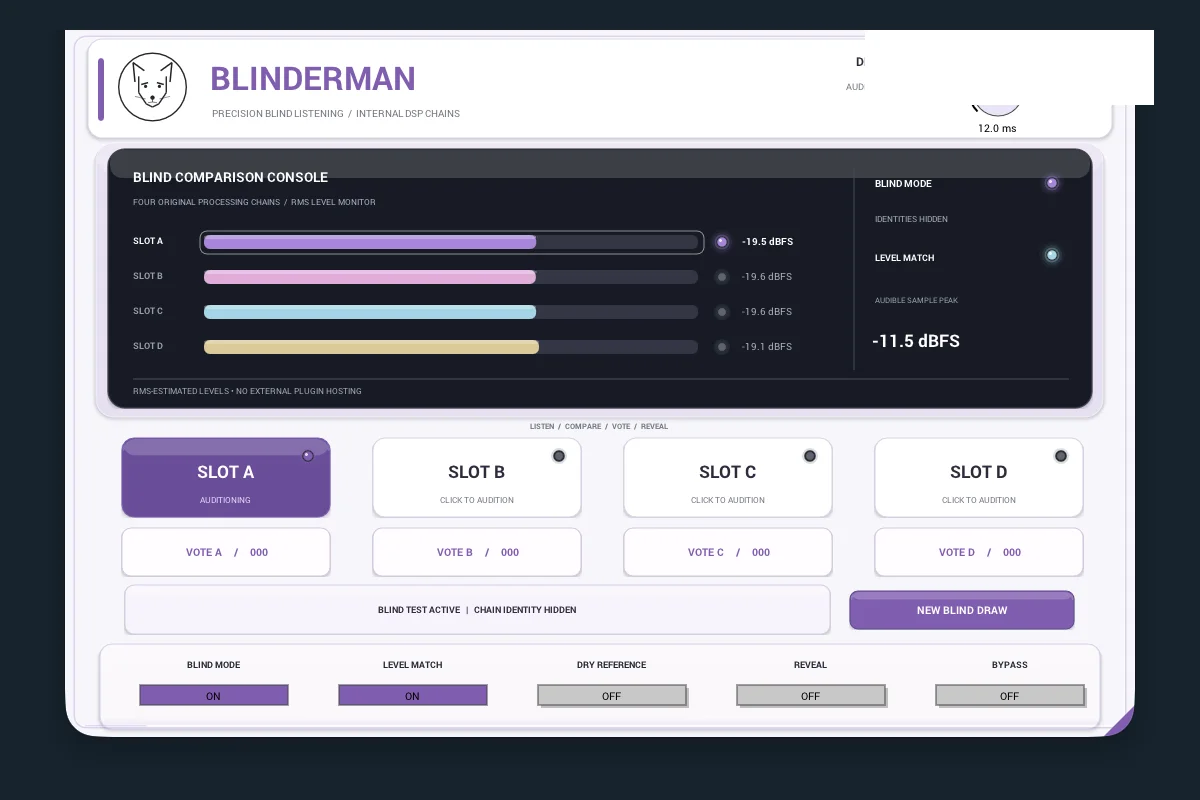
Actual Blinderman plugin interface.
What can Blinderman do?
Inspect the band-compression console and its level indicators.
Explore processing slots A through D.
Adjust dynamics-related parameters and compare the processing states.
Getting started: Start with the band-compression overview, then move into a processing slot for more detailed control.
Everything is free
Get the complete Blinderman AUv2/VST3 ZIP and generate your personal One Shot activation code. You may activate on one Mac; after the first successful activation it works offline and covers all 29 plugins.
Your private Secure Enclave key stays on the Mac, not on this site.
STEP 1 · DOWNLOAD AND INSTALL THE PLUGIN
Download and install Blinderman
Download the plugin ZIP using the yellow button and unzip it in your Downloads folder. Close your DAW before installing.
AUv2: Copy Blinderman.component from the AU folder to ~/Library/Audio/Plug-Ins/Components/.
VST3: Copy Blinderman.vst3 from the VST3 folder to ~/Library/Audio/Plug-Ins/VST3/.
Install the format your DAW uses, or both formats if needed.
STEP 2 · GENERATE AND DOWNLOAD YOUR CODE TXT ONLINE
Generate your personal One Shot code online and download the TXT
One Shot is an online code-generation service, not an application to install. One code covers all 29 DELGHE AUDIO plugins, free and permanently. It becomes associated with the first Mac on which you activate it. Keep it private so you can restore the license on that same Mac.
Accept the license to generate your code.
YOUR PERSONAL ONE SHOT ACTIVATION CODE
Keep the TXT private. Paste the code when you first open any DELGHE AUDIO plugin in your DAW.
STEP 3 · OPEN YOUR DAW AND ACTIVATE
Open your DAW, load Blinderman, and enter your activation code
Open Ableton Live, Logic Pro, REAPER, or another compatible DAW. Rescan installed plugins if necessary and load Blinderman on a track.
When the One Shot activation window appears, open the TXT downloaded in Step 2. Copy the code → paste it into the plugin → click Activate. Internet access is required for first activation.
After a successful first activation, the license is used on the same Mac, including offline. You do not need to enter the code on every launch.
REINSTALLING ON THE SAME MAC
If you delete and reinstall this plugin on the same Mac, use the same original One Shot code from your saved TXT. The existing permanent license is restored for that Mac; it is not a new activation. Do not generate a new code just because you reinstalled the plugin. The code cannot be used on another Mac.
If your original Mac security key has been erased, or you replaced the Mac, recovery cannot happen automatically.
IF MACOS BLOCKS THE PLUGIN
First try opening the plugin you downloaded from delgheaudio.com. If macOS blocks it, dismiss the warning and follow this path:
APPLE MENU → SYSTEM SETTINGS → PRIVACY & SECURITY → SECURITY → OPEN ANYWAY → OPEN
Scroll down to Security, click Open Anyway only for the specific trusted DELGHE AUDIO item that was blocked (if macOS offers it), confirm Open, and authenticate if requested. Then reopen your DAW and load the plugin.
Safety: The Open Anyway option may not appear. Do not override malware or damaged-app warnings, and never disable Gatekeeper or other system protections.